
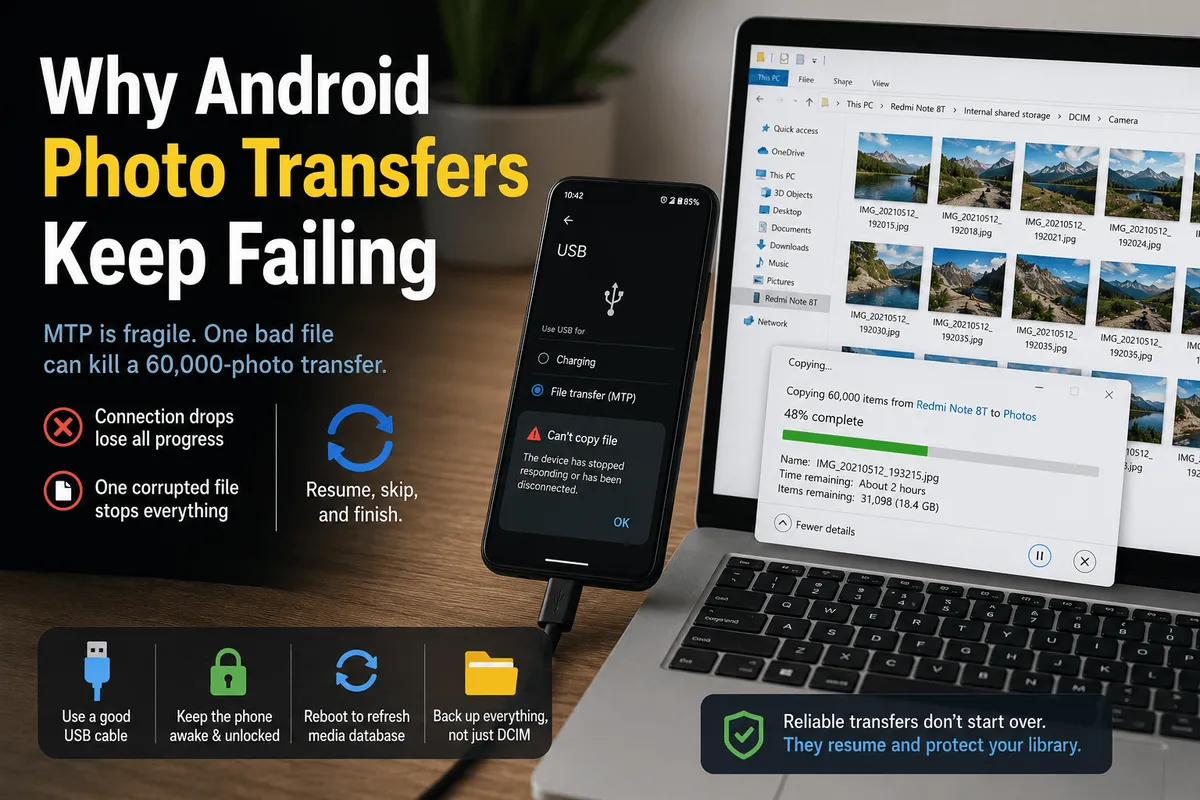
A friend came to me with a Xiaomi Redmi Note 8T that had run out of storage. About 60,000 photos on it — and in the entire life of that phone, not one backup. No copying to a computer, no cloud sync, nothing. Just normal use, the way most people use a phone.
I started with the obvious approach: plug it in, open File Explorer, drag the DCIM folder across.
Attempt 1. Somewhere after roughly 10,000 photos, the phone dropped the connection. The copy stopped. I was left with a partial folder on the PC and no way to tell which of the 60,000 files were in it.
Attempt 2. Same again. Another drop, another partial folder, no more information than the first time.
At that point I went into the phone’s settings and stopped it going to sleep and disconnecting.
Attempt 3. It got about halfway — then hit a corrupted file. Windows showed the error and ended the whole operation right there. Every file queued behind that one was never copied.
Attempt 4. Run again, purely to confirm the file was genuinely broken. It was. I never got that photo out, and no tool was going to — it was damaged on the phone itself. One photo was lost either way; the problem was that it took the other 59,999 down with it.
Four attempts, one dead file, and an evening gone. Those four attempts are the reason PhotoPiper supports Android at all. Everything below is what they taught me.
Short answer
Android photo transfers over USB fail because of MTP — the protocol Windows uses to talk to the phone. It’s fragile by design, and two specific behaviours cause most of the damage: a dropped connection loses all progress, and one unreadable file aborts the entire copy.
Better cables and ports reduce the first. Neither is fixed by troubleshooting — they’re how File Explorer works. What fixes them is a transfer that resumes where it stopped and that skips a bad file instead of dying on it.
MTP is the problem, and it isn’t your cable
When you plug an Android phone into a PC and choose File transfer, Windows doesn’t mount a drive. It opens an MTP session — Media Transfer Protocol, designed years ago for browsing media on portable players. Everything you do in Explorer becomes a request-and-response conversation with the phone.
That has five consequences, and between them they explain nearly every Android transfer failure:
1. It isn’t a filesystem. The phone exposes objects, not files on a disk. Explorer can’t do the things it does on a real drive — and it can’t recover from an error the way it would locally.
2. What you see is a database, not your storage. MTP shows what Android’s media scanner has indexed. A file can be physically present on the phone and invisible to the PC because the media database doesn’t know about it yet. More on this below — it catches people constantly.
3. The session is stateful and easy to break. Lock the screen, nudge the cable, let the port power down, let the phone’s process get killed under memory pressure — the session ends and the device re-mounts as if freshly plugged in. Mid-copy, that’s a dead copy.
4. Every phone maker ships its own implementation. MTP on a Samsung, a Pixel, and a Xiaomi are three different pieces of software with three different sets of quirks. Same PC, same cable, same Windows — different results. It’s why generic advice so often doesn’t work for your specific phone, and why the Redmi Note 8T above behaved nothing like the Samsungs I’d copied from before.
5. There is a per-file cost. Each item is its own round trip. On 200 photos it’s invisible. On 60,000, the overhead is most of the transfer time.
Symptom: the phone shows up, but the folders are empty
You see the device under This PC, you open it, and there’s nothing — or Internal storage opens into blank space.
Usually the phone is still in charging mode from the PC’s point of view, or the session half-connected. In order:
- Unlock the phone. MTP won’t expose storage to a locked device.
- Re-pick the USB mode. Pull down the notification shade, tap the USB notification, choose File transfer. If it’s already set, switch it to Charging and back — that re-initialises the session.
- Unplug, wait five seconds, replug. Half-open MTP sessions are common and this clears them.
- Try a different USB port, ideally on the back of a desktop, and skip hubs and docks entirely.
Symptom: photos are on the phone but don’t appear on the PC
This one is genuinely obscure, and it’s the reason people think files “disappeared.”
MTP doesn’t show your storage — it shows what Android’s media scanner has indexed. If a file was written in a way that didn’t notify the media database, it exists on the phone, opens fine in your gallery, and is completely invisible over USB.
It shows up most often with images saved by apps, files moved between folders with a file manager, or media restored from a backup.
The fix: reboot the phone. A restart triggers a media rescan, and the missing files appear on the PC afterwards. On a large library, give the rescan a few minutes to finish before reconnecting.
The practical lesson: before you copy, check the file count in your phone’s own gallery, then check what the PC sees. If the PC’s number is lower, don’t start copying yet — reboot first. Otherwise you’ll finish a transfer that looks complete and is quietly missing photos.
Symptom: the copy stops halfway
The classic. Sometimes with Device has stopped responding or has been disconnected, sometimes with no message at all.
The session dropped. What to change, in order of how often it helps:
- Keep the phone unlocked for the whole transfer. Set the screen timeout to its longest setting, or Never, and put it back afterwards. This is the single biggest one — on the Redmi it took me from a drop at 10,000 photos to getting roughly halfway. Further, not finished.
- Change the cable. Bundled and cheap cables are frequently charge-only or marginal on data. Use the phone’s own cable, or one you’ve moved files with before.
- Plug directly into the PC. No hubs, no docks, no monitor ports, no extensions.
- Disable USB selective suspend. Control Panel → Power Options → Change plan settings → Change advanced power settings → USB settings → USB selective suspend setting → Disabled. Windows powering down the port mid-transfer is indistinguishable from someone pulling the cable.
- Stop the PC sleeping. A 60,000-file transfer will outlast your idle timeout.
- Try a USB 2.0 port. Counter-intuitive, but some phones are more stable at 2.0 than on a USB 3 controller.
- Exempt the phone’s transfer process from battery optimisation if your phone offers it, and keep it plugged into power.
All of this makes a drop less likely. None of it makes a drop survivable — that’s the next section.
Symptom: one bad file kills the whole import
This is the failure that cost me the most time, and no amount of cable-swapping touches it.
In a library of tens of thousands of photos there is usually at least one file the phone can’t read cleanly: an interrupted video recording, a photo damaged by a bad write, an item whose entry and contents don’t match. When Explorer reaches it, the copy errors out and stops. Every file behind it in the queue is never attempted.
The usual advice is to find the bad file and copy around it — split the transfer into chunks, folder by folder or month by month, until you isolate the culprit. On 60,000 photos that’s an evening, and you get to do it again next time.
The behaviour you actually want is simple: log the bad file, leave it, keep going. One damaged photo should cost you one photo, not the other 59,999.
Symptom: it’s unbearably slow, or stuck on “Calculating…”
Before copying anything, Explorer has to enumerate every item on the device. Over MTP, on a large library, that legitimately takes minutes. It isn’t frozen.
Give it time — and if you’re going to interrupt, interrupt in the first minute rather than at 80%. Better, use something that shows the item count and total size while it scans, so you can tell “working” apart from “hung.”
What troubleshooting can’t fix
Everything above makes failures less frequent. On a big library, over hours, something will still go wrong. So the question that actually matters is what happens when it does.
Two behaviours turn a failed transfer from a disaster into an inconvenience — and they’re the two things I built into PhotoPiper after those four attempts:
It resumes where it stopped
PhotoPiper keeps track of what it has already copied. When a transfer is interrupted — cable moved, phone locked, app closed, PC rebooted — you run it again and it skips everything that already landed and continues with the rest. A transfer that dies at 40,000 of 60,000 costs you the remaining 20,000, not all 60,000. Duplicates are detected by name and content, so nothing arrives twice.
This is exactly the question I couldn’t answer after attempt 1: which of those 60,000 files do I already have? The app answers it, so you don’t have to.
One broken file doesn’t end the run
An unreadable file is marked as failed, and the transfer keeps going to the end. Live counters show copied, skipped, and failed as it runs, with a summary at the finish — so “did it actually complete?” has a number for an answer instead of a shrug.
And the summary names them. You don’t just get a count of failures, you get the list of files that couldn’t be copied — so you know exactly which photos didn’t make it, instead of wondering what’s missing from a folder of 60,000. Usually that list is one or two items you can go look at on the phone yourself.
A file that fails this way was damaged on the phone already. It wasn’t going to copy with any tool. The only question is whether it costs you one file or the entire import.
How to run the transfer
- Reboot the phone first (this clears the media-scanner problem before it bites).
- Connect over USB and set the mode to File transfer.
- Keep the phone unlocked and plugged into power.
- Open PhotoPiper — it scans the DCIM folder and shows the full item count and size before copying anything.
- Pick a destination folder (an external drive is fine), choose date folders or flat, and start.
- If it stops for any reason, run it again. It picks up from where it stopped.
- When it finishes, check the numbers: copied + skipped + failed should match the count you saw at the scan. Anything that failed is listed by name, so you can check those files on the phone.
- Only then consider deleting anything from the phone.
PhotoPiper for Windows — Android, iPhone, and SD cards over USB on Windows 10 and 11, native x64 and ARM64. One-time $19.99, no subscription, with a 5-day trial that moves up to 100 photos a day, so you can point it at the library that’s been failing on you before paying anything.
Note: PhotoPiper reads the DCIM folder — your camera roll. Screenshots, WhatsApp media, and downloads live outside DCIM on most Android phones; those folders are small and easy to drag across in Explorer.
If you’re transferring from an iPhone instead
iPhones fail differently. The common one on Windows is error 0x80070141 “the device is unreachable”, which is caused by the phone trying to convert each photo to a compatible format as it sends it. Fix it in Settings → Photos → Transfer to Mac or PC by switching Automatic to Keep Originals — then deal with the resulting HEIC files by converting them on the PC side. Full guide: iPhone photos to Windows without iCloud.
FAQ
Why does my Android photo transfer keep stopping? Because MTP sessions break easily and File Explorer keeps no record of progress. A locked screen, a moved cable, or a port powering down ends the copy — and nothing about the files already copied is saved, so a retry starts from zero.
Can I resume an interrupted Android photo transfer? Not with File Explorer, which will re-copy everything. PhotoPiper records what it copied, so running it again continues with only the files still left on the phone.
Why are some photos on my phone not visible on my PC? MTP shows what Android’s media scanner has indexed, not the raw storage. Files the scanner hasn’t picked up are invisible over USB. Reboot the phone to trigger a rescan, then reconnect.
One photo stops my whole import. What do I do? That file is damaged on the phone, and if it’s unreadable there, it’s most likely unrecoverable — expect to lose it. What you shouldn’t lose is everything else. Instead of hunting for it by splitting the transfer into chunks, use a tool that marks it failed and continues — PhotoPiper finishes the run and then tells you, by name, which files couldn’t be copied.
How do I know the transfer finished completely? Compare numbers. Note the item count before you start, then confirm that copied + skipped + failed equals it at the end. A progress bar reaching 100% is not evidence.
Is it safe to retry a failed transfer? Yes. Copying reads from the phone; nothing is removed. Just don’t delete anything from the device until you’ve verified a complete copy.
Related: How to transfer photos from Android to PC · iPhone photos to Windows without iCloud