
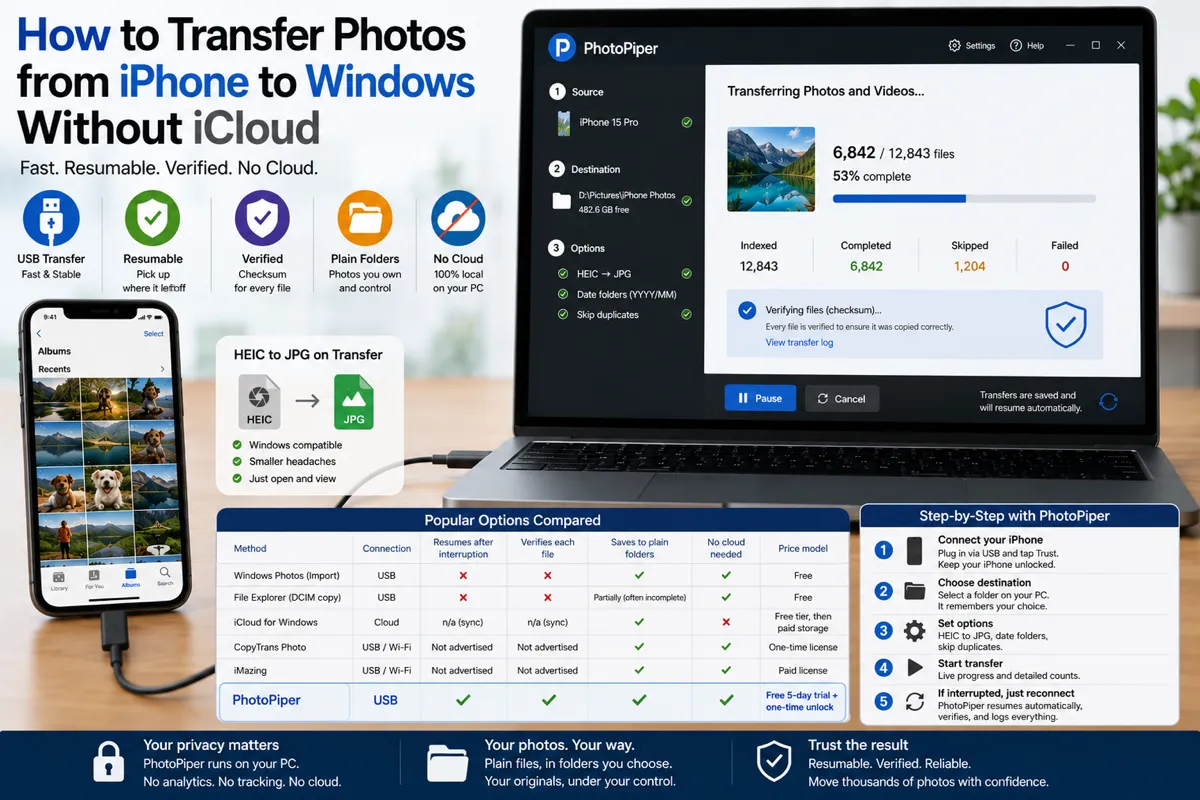
Short answer: For a handful of photos, dragging them out of File Explorer or emailing them to yourself is fine. To move thousands of iPhone photos to Windows without iCloud, you want a wired (USB) transfer that can resume after an interruption and verify every file it copies — because the usual failure with big libraries on Windows isn’t speed, it’s a copy that stalls halfway, silently drops files, or leaves your photos as HEIC files Windows can’t even open. This guide explains why large iPhone-to-Windows transfers fail, what to look for, and honestly compares the main options.
Why big transfers fail with the built-in Windows tools
Windows and iPhone don’t speak the same language natively, and the built-in methods were designed for a few files at a time — not for moving a 60 GB camera roll in one sitting:
- Windows Photos (Import) does save to a normal folder, but it’s widely reported to stall or die partway through large libraries — throwing errors like “unknown error” or “catastrophic failure” — and it has no concept of resuming. If it fails at photo 6,000 of 12,000, you’re often starting over. It also frequently shows only a subset of your photos, because anything stored in iCloud rather than on the device won’t appear over USB.
- File Explorer (This PC → Apple iPhone → Internal Storage → DCIM) is the manual method, and it’s fragile. The DCIM folder regularly shows up empty or incomplete, photos land in cryptic folders (
100APPLE,101APPLE) in no useful order, large copy operations fail once the batch gets big, and the connection drops if the phone locks. It has no resume and no verification — you’re left comparing counts by hand. - iCloud for Windows is the wireless-sync answer, but it is the cloud — it needs enough iCloud storage (usually a paid plan for a big library) and a full internet round-trip. If your whole goal is to stay off iCloud, it’s the wrong tool by definition.
- iTunes confuses a lot of people here: it backs up your device and syncs photos onto the phone, but it does not export your camera roll to a folder on your PC. Installing it can help by adding Apple’s USB drivers, but it won’t do the transfer you’re after.
The HEIC problem (Windows-specific)
Even when the copy works, you often end up with files Windows won’t open. Since iOS 11, iPhones save photos as HEIC by default — about half the file size of JPG at the same quality. The catch: Windows doesn’t ship the HEVC codec HEIC needs, so a stock Windows 10 or 11 PC shows a blank preview or “can’t open this file.” Fixing it means installing Microsoft’s HEIF Image Extensions and HEVC Video Extensions — and the HEVC one usually carries a small charge and is a known source of “installed it and it still won’t open” headaches.
The clean way around this is to convert HEIC to JPG during the transfer, so the photos that land on your PC just open — in Photos, File Explorer thumbnails, Word, browsers, everything — with no codec hunting.
What to look for in a bulk transfer
When you’re moving thousands of files off an iPhone onto Windows, four things matter far more than raw speed:
- Resumable — if the cable disconnects or the PC sleeps, it picks up where it stopped instead of restarting.
- Verified — each copied file is checked (ideally by checksum) so you know it arrived intact, not just that a progress bar finished.
- Plain folders — files land in a normal folder you choose (Pictures, an external drive, a synced folder), not locked inside a proprietary library.
- No cloud required — the transfer happens locally over USB, so nothing depends on upload quotas or an internet connection.
Nice-to-haves: automatic HEIC → JPG conversion for compatibility, date-based folders (YYYY/MM), and duplicate detection so re-running a transfer only copies what’s new.
The options compared
| Method | Connection | Resumes after interruption | Verifies each file | Saves to plain folders | No cloud needed | Price model |
|---|---|---|---|---|---|---|
| Windows Photos (Import) | USB | No | No | Yes | Yes | Free |
| File Explorer (DCIM copy) | USB | No | No | Yes (but often incomplete) | Yes | Free |
| iCloud for Windows | Cloud | n/a (sync) | n/a | Yes | No | Free tier, then paid storage |
| CopyTrans Photo | USB / Wi-Fi | Not advertised | Not advertised | Yes | Yes | One-time license |
| iMazing | USB / Wi-Fi | Not advertised | Not advertised | Yes | Yes | Yearly subscription |
| PhotoPiper | USB | Yes | Yes (checksum) | Yes | Yes | Free 5-day trial + one-time unlock |
Honest read of the table: if you want a full device-management suite — backups, messages, app data — iMazing does far more than move photos. CopyTrans Photo is a genuinely good, Windows-native option: drag-and-drop, HEIC-to-JPG on transfer, and it keeps the original photo date, though its focus is browsing and organizing rather than surviving a mid-transfer interruption. PhotoPiper is narrower on purpose — it does one job, bulk USB photo/video transfer, and is built around the two things large transfers actually need: resuming cleanly after a drop and verifying every file with a checksum, so you can trust the result. If you’re weighing iMazing specifically, there’s a fuller comparison here: iMazing alternative for Windows.
Step-by-step: moving a large library with PhotoPiper
- Install and connect over USB. Get PhotoPiper for Windows from the Microsoft Store or the direct download, plug your iPhone into your PC, and tap Trust when prompted. Keep the phone unlocked during the transfer — iOS throttles access when it’s locked, which is behind a lot of “empty DCIM folder” complaints.
- Pick a destination folder. Choose your Pictures folder, an external drive, or any location. It remembers your choice next time.
- Set your options. Optionally turn on HEIC → JPG, date folders (
YYYY/MM), and skip duplicates so only new photos copy. - Start. PhotoPiper scans the phone, then copies. Live counters show indexed, completed, skipped, and failed files — so you can see exactly what’s happening.
- If it’s interrupted, just reconnect. It skips everything already transferred and continues with the rest. Each file is validated with a checksum and logged, so you can confirm exactly what was saved and what was skipped — no guessing whether the transfer really worked.
The transfer itself runs entirely on your PC — your photos go straight from the phone to the folder you picked, and never touch anyone’s servers.
When you don’t need this
If you only move a few photos at a time, or you’re happy living inside iCloud, the built-in tools are genuinely fine — no third-party app needed. Reach for a dedicated tool when the library is large, the built-in import keeps stalling, your photos won’t open because they’re HEIC, or you want your originals as plain files you control.
On a Mac instead? See How to Transfer Thousands of Photos from iPhone to Mac Without iCloud. Moving an Android phone instead? See How to Transfer Photos from Android to PC.
FAQ
Can I transfer photos from iPhone to Windows without iCloud? Yes. Connect over USB and use a tool that copies directly to a folder on your PC. No iCloud account or internet connection is required — your photos stay on your devices.
Why does Windows Photos import fail on large iPhone libraries? Windows Photos wasn’t built to track progress or resume. On a big batch, a single stall — a locked phone, a problem file, a cable glitch, or an iCloud-only photo it can’t reach — can hang the whole import, and it doesn’t remember what already copied, so you often restart from zero.
Why do my iPhone photos show as blank or “can’t open” on Windows? Because they’re HEIC, and Windows doesn’t include the HEVC codec by default. You either install Microsoft’s HEIF and HEVC extensions, or transfer with a tool that converts HEIC to JPG on the way over so the files just open.
Why is the DCIM folder empty or missing when I plug in my iPhone? Usually the phone is locked, you haven’t tapped Trust/Allow, the cable is charge-only, or the photos live in iCloud rather than on the device. Unlock the phone, keep it on the Home screen, and use a data cable.
Do I need iTunes to transfer iPhone photos to Windows? No. iTunes backs up the device and syncs photos to the phone — it doesn’t export your camera roll to a PC folder. Installing it only helps by adding Apple’s USB drivers.
What’s the fastest reliable way to move 10,000+ photos to a PC? A wired USB transfer that resumes and verifies. USB is faster and more stable than wireless for bulk, resuming means an interruption doesn’t cost you the whole run, and per-file verification means you can trust the result.
PhotoPiper is a USB photo-transfer app for Windows 10 and 11. Free 5-day full trial, then a one-time unlock for unlimited transfers — no subscription, no cloud. Get it on the Microsoft Store, or download the installer directly (signed by a verified publisher). Learn more or download.