
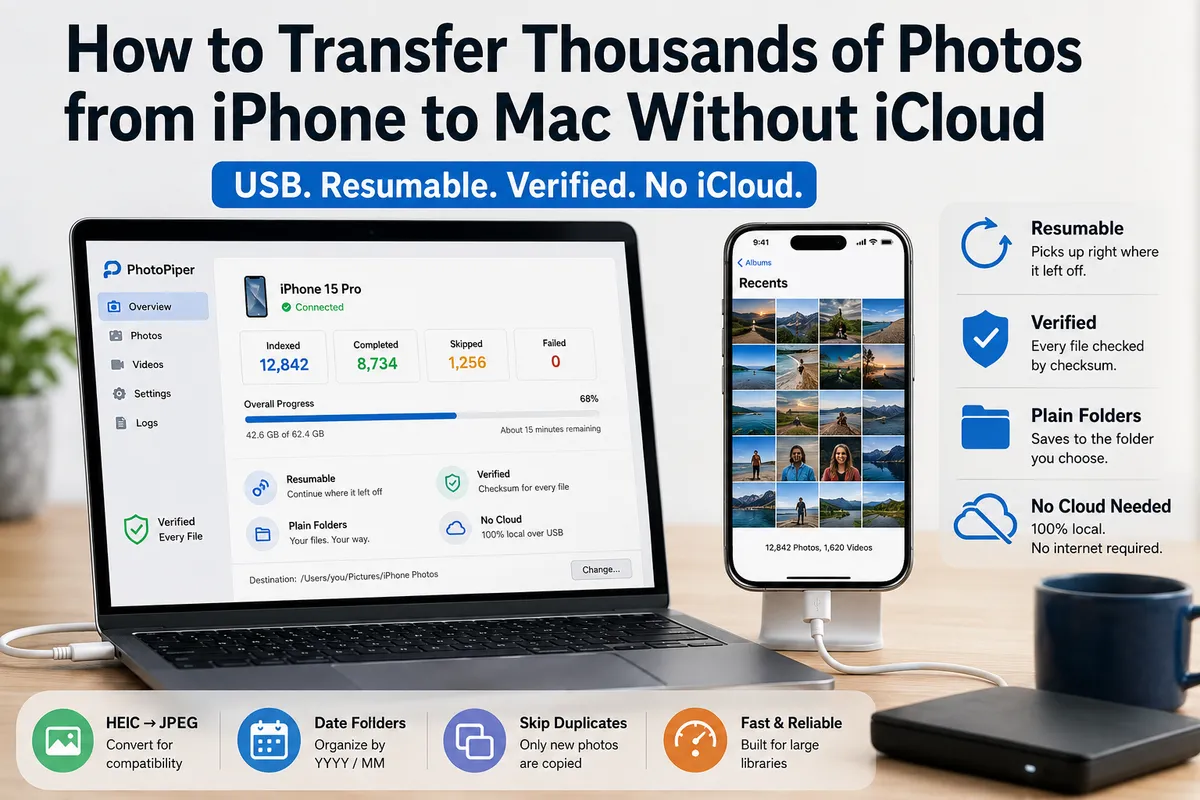
Short answer: For a handful of photos, Apple’s built-in Photos app or AirDrop is fine. For thousands of photos without iCloud, you want a wired (USB) transfer that can resume after an interruption and verify every file it copies — because the usual failure with big libraries isn’t speed, it’s a transfer that stalls halfway and leaves you unsure what actually made it across. This guide explains why large transfers fail, what to look for, and honestly compares the main options.
Why big transfers fail with the built-in tools
The built-in methods were designed for convenience, not for moving a 60 GB camera roll in one sitting:
- Apple Photos (Import) copies into a proprietary library format, so your originals end up locked inside a
.photoslibraryrather than as plain files you control. On very large batches the import can stop mid-way — a cable wiggle, the phone locking, or a single problematic video — and it doesn’t clearly track what already came across. - Image Capture does save to a folder, but it’s widely reported to freeze or stall on large libraries, and it has no concept of resuming or skipping what you already copied. If it dies at photo 6,000 of 12,000, you’re often starting over.
- AirDrop is great for a few items and painful for thousands — it’s slow in bulk and can fail silently.
- iCloud Photos is the wireless-sync answer, but it is the cloud — it needs enough iCloud storage (usually a paid plan for a big library) and an internet round-trip. If your whole goal is to stay off iCloud, it’s the wrong tool by definition.
What to look for in a bulk transfer
When you’re moving thousands of files, four things matter far more than raw speed:
- Resumable — if the cable disconnects or the Mac sleeps, it picks up where it stopped instead of restarting.
- Verified — each copied file is checked (ideally by checksum) so you know it arrived intact, not just that a progress bar finished.
- Plain folders — files land in a normal folder you choose (Pictures, an external drive, a synced folder), not inside a hidden library.
- No cloud required — the transfer happens locally over USB, so nothing depends on upload quotas or internet.
Nice-to-haves: automatic HEIC → JPEG conversion for compatibility, date-based folders (YYYY/MM), and duplicate detection so re-running a transfer only copies what’s new.
The options compared
| Method | Connection | Resumes after interruption | Verifies each file | Saves to plain folders | No cloud needed | Price model |
|---|---|---|---|---|---|---|
| Apple Photos (Import) | USB | No | No | No (imports into library) | Yes | Free |
| Image Capture | USB | No | No | Yes | Yes | Free |
| AirDrop | Wireless | No | No | Yes (Downloads) | Yes | Free |
| iCloud Photos | Cloud | n/a (sync) | n/a | No | No | Free tier, then paid storage |
| iMazing | USB / Wi-Fi | Partial | No | Yes | Yes | Paid license |
| PhotoSync | Mostly Wi-Fi | No | No | Yes | Yes | Freemium |
| Photo Transfer App | Wi-Fi | No | No | Yes | Yes | Freemium |
| PhotoPiper | USB | Yes | Yes (checksum) | Yes | Yes | Free daily tier + one-time unlock |
Honest read of the table: if you specifically want wireless transfer, PhotoSync or Photo Transfer App are built for that. If you want a full device-management suite (backups, messages, app data), iMazing does far more than move photos. PhotoPiper is narrower on purpose — it does one job, bulk USB photo/video transfer, and is built around the two things large transfers actually need: resuming cleanly and verifying every file.
Step-by-step: moving a large library with PhotoPiper
- Connect over USB. Plug your iPhone into your Mac with a USB or USB-C cable and tap Trust when prompted. PhotoPiper detects the device automatically. Keep the phone unlocked during the transfer — iOS throttles access when it’s locked.
- Pick a destination folder. Choose your Pictures folder, an external drive, or any location. It remembers your choice next time.
- Set your options. Optionally turn on HEIC → JPEG, date folders (YYYY/MM), and skip duplicates so only new photos copy.
- Start. PhotoPiper scans the phone (usually seconds), then copies. Live counters show indexed, completed, skipped, and failed files — so you can see exactly what’s happening.
- If it’s interrupted, just reconnect. It skips everything already transferred and continues with the rest. When it finishes, you get a summary of everything that moved.
Each file is validated with a checksum and logged, so you can confirm exactly what was saved and what was skipped — no guessing whether the transfer really worked. PhotoPiper runs entirely on your Mac, with no analytics, tracking, or telemetry, and your photos never touch anyone’s servers.
When you don’t need this
If you only move a few photos at a time, or you’re happy living entirely inside Apple Photos and iCloud, the built-in tools are genuinely fine — no third-party app needed. Reach for a dedicated tool when the library is large, the built-in import keeps stalling, or you want your originals as plain files you control.
On Windows instead? See How to Transfer Photos from iPhone to Windows Without iCloud.
FAQ
Can I transfer photos from iPhone to Mac without iCloud? Yes. Connect over USB and use a tool that copies directly to a folder on your Mac. No iCloud account or internet connection is required — your photos stay on your devices.
Why does Image Capture freeze on large photo libraries? Image Capture wasn’t built to track progress or resume. On a big batch, a single stall (a locked phone, a problem file, a cable glitch) can hang the whole transfer, and it doesn’t remember what already copied — so you often restart from zero.
How do I move photos as regular files instead of into the Photos library?
Use a tool that copies originals to a folder you choose. Apple Photos locks images inside a .photoslibrary; a folder-based transfer keeps them as normal files on your Pictures folder, an external drive, or a synced folder.
Does converting HEIC to JPEG lose quality? Converting re-encodes the image, so it’s not bit-for-bit identical, but a high-quality JPEG is visually indistinguishable for normal use and opens on any device. Keep HEIC if you need the smaller files and full fidelity; convert if you need universal compatibility.
What’s the fastest reliable way to move 10,000+ photos to a Mac? A wired USB transfer that resumes and verifies. USB is faster and more stable than wireless for bulk, resuming means an interruption doesn’t cost you the whole run, and per-file verification means you can trust the result.
PhotoPiper is a USB photo-transfer app for macOS 15.2+ (Intel and Apple Silicon). Free up to a daily limit, with a one-time unlock for unlimited transfers — no subscription, no cloud, no tracking. Learn more or download.