
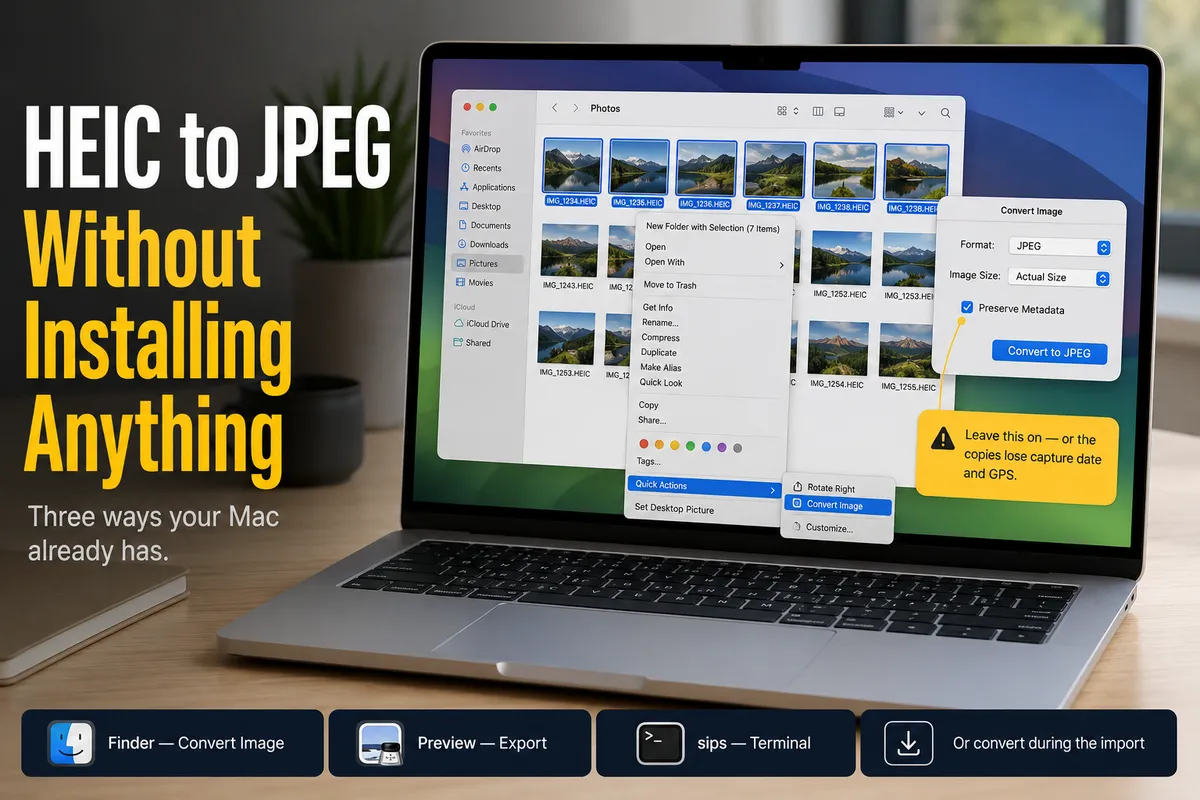
Short answer: if the photos are already on your Mac, you don’t need to install anything. Select them in Finder, right-click → Quick Actions → Convert Image → JPEG. That’s the whole job for most people, and it’s free. Preview and the sips command handle the cases Finder doesn’t. If the photos are still on the iPhone, converting on the Mac afterwards is the slower path — you copy every file once, then rewrite every file again — and there are two better answers: change the format the iPhone shoots in, or convert during the transfer.
Why HEIC exists and why it keeps causing trouble
Since iOS 11 the iPhone has saved photos as HEIC — an image in Apple’s High Efficiency container, encoded with HEVC. It’s a genuine improvement: roughly half the file size of a JPEG at comparable quality. On a phone holding 40,000 photos that’s a lot of storage back.
The problem is everything that isn’t a modern Apple device. Windows doesn’t ship the HEVC codec, so a stock Windows 10 or 11 PC shows a blank thumbnail or “can’t open this file” until you install both Microsoft’s HEIF Image Extensions and HEVC Video Extensions — and the second one usually costs a small fee. Plenty of web upload forms, older photo software, TVs, digital frames and print kiosks reject HEIC outright.
So the conversion isn’t about quality. It’s about the file being openable by whoever you hand it to.
Method 1: Finder’s Convert Image (the one to use)
On macOS Monterey and later this is built into the right-click menu, and it handles a folder of files as happily as one.
- Select the HEIC files in Finder — one, or ten thousand.
- Right-click → Quick Actions → Convert Image.
- Set Format to JPEG.
- Leave Image Size on Actual Size unless you specifically want smaller copies.
- Check Preserve Metadata, then click Convert to JPEG.
The JPEGs appear next to the originals; the HEIC files aren’t touched or deleted.
That Preserve Metadata box is the one to watch. Leave it unchecked and the copies come out stripped of capture date, GPS location and camera settings — which means your photo library sorts them by the day you converted them rather than the day you took them. People discover this months later, after deleting the originals.
Method 2: Preview, when you want to control quality
Finder’s quick action gives you no quality slider. Preview does.
- One photo: open it, File → Export, set Format to JPEG, drag the Quality slider, save.
- A batch: select the files, open them all in Preview, then in the sidebar press ⌘A to select every thumbnail and choose File → Export Selected Images. You get one dialog for the whole set and a folder to drop them in.
Preview starts to struggle somewhere in the hundreds of images, so this is the method for a set you’re delivering, not for an archive.
Method 3: sips, for thousands of files
sips ships with macOS and is what you want when a folder has ten thousand photos in it and you’d like your Mac to still be usable afterwards.
cd ~/Pictures/HEIC
mkdir -p ../JPEG
for f in *.heic *.HEIC; do
  [ -e "$f" ] || continue
  sips -s format jpeg -s formatOptions 85 "$f" --out "../JPEG/${f%.*}.jpg"
done
formatOptions is the JPEG quality, 0–100; 85 is a sensible default that’s visually indistinguishable from the original for normal viewing. The originals stay where they are, converted copies land in a separate folder.
Run it on a copy the first time. It’s a loop that writes files, and there’s no undo.
The step almost every guide skips: stop making HEICs
If you’re converting the same photos every month, you’re solving the problem in the wrong place. Two iPhone settings decide whether you ever see a HEIC on your Mac.
Settings → Camera → Formats → Most Compatible. The camera shoots JPEG from now on. Existing photos stay HEIC. You lose the storage saving and, on the Pro models, some format options — but if every photo you take ends up on a Windows machine, this is the correct answer and it takes five seconds.
Settings → Photos → Transfer to Mac or PC → Automatic. This one converts HEIC to JPEG as photos leave the phone over USB, and it’s set to Automatic by default — which is why some people never see a HEIC and others see nothing else. If yours is on Keep Originals, that’s your answer.
Worth knowing what Automatic does not cover: it applies to the standard USB import path. If a tool reads the camera roll directly, the conversion is that tool’s job, not iOS’s.
When converting during the transfer is the better move
Everything above assumes the photos are already sitting on your Mac. If they’re still on the phone — a full camera roll you’re about to import — doing it in two passes costs you real time and disk:
- Pass one: copy 60 GB of HEIC off the phone.
- Pass two: read all 60 GB back, re-encode, write ~100 GB of JPEG next to it.
- Then: work out which HEICs you’re now allowed to delete.
Converting during the import does it in one pass, and the files that land are already the ones you can use. PhotoPiper does this with a checkbox before the transfer starts — HEIC → JPEG at quality 0.94, EXIF and GPS carried across, straight into YYYY/MM folders, skipping anything it has already copied. That last part matters if you import monthly: it records a checksum of the original alongside the converted file, so a photo you converted last month isn’t offered to you again this month.
If you’re pulling a large library off the phone in the first place, the full guide to that is here. On a Windows PC, PhotoPiper for Windows does the same conversion on import.
When not to convert at all: if the photos live on your Mac and stay there, HEIC is the better format and macOS opens it everywhere. Convert the ones you’re sending out, not the archive.
Watch the disk space
A converted library is roughly twice the size of the original. 60 GB of HEIC becomes something near 110 GB of JPEG, and if you keep both you now need 170 GB. This is the most common unpleasant surprise when someone converts a whole library on a 256 GB MacBook.
If you’re converting an archive rather than a delivery set, put the JPEGs on an external drive.
FAQ
Does converting HEIC to JPEG lose quality? Slightly. It’s a re-encode, so one generation of JPEG loss is added on top of what the camera already did. At quality 85 or above you won’t see it on screen or in print. What you will see is the file size going up, because JPEG is the less efficient format.
Does the conversion keep the date and GPS location?
It should, but check. In Finder’s Convert Image, that’s the Preserve Metadata checkbox. Preview and sips carry EXIF across by default. Verify one file before you convert ten thousand: select it, press ⌘I, and look for the capture date.
Can I convert back to HEIC afterwards?
Technically yes — sips -s format heic — but there’s no point. The quality lost in the JPEG round is gone; you’d just get a smaller file of the same degraded image. Keep the HEIC originals if you may want them.
What happens to Live Photos? Converting the still image gives you a JPEG; the paired video component isn’t part of that file and doesn’t come along. If Live Photos matter to you, keep the originals.
Why can’t Windows open my HEIC files? Windows doesn’t include the HEVC codec by default. You can install Microsoft’s HEIF and HEVC extensions, but converting to JPEG before you hand the files over saves the person on the other end the trouble.
Is there a free way to do this without Terminal? Yes — Method 1. Finder’s Convert Image is free, built in, and handles batches. Most of the “free HEIC converter” websites you’ll find are asking you to upload your photos to a stranger’s server to do a job your Mac already does offline.