
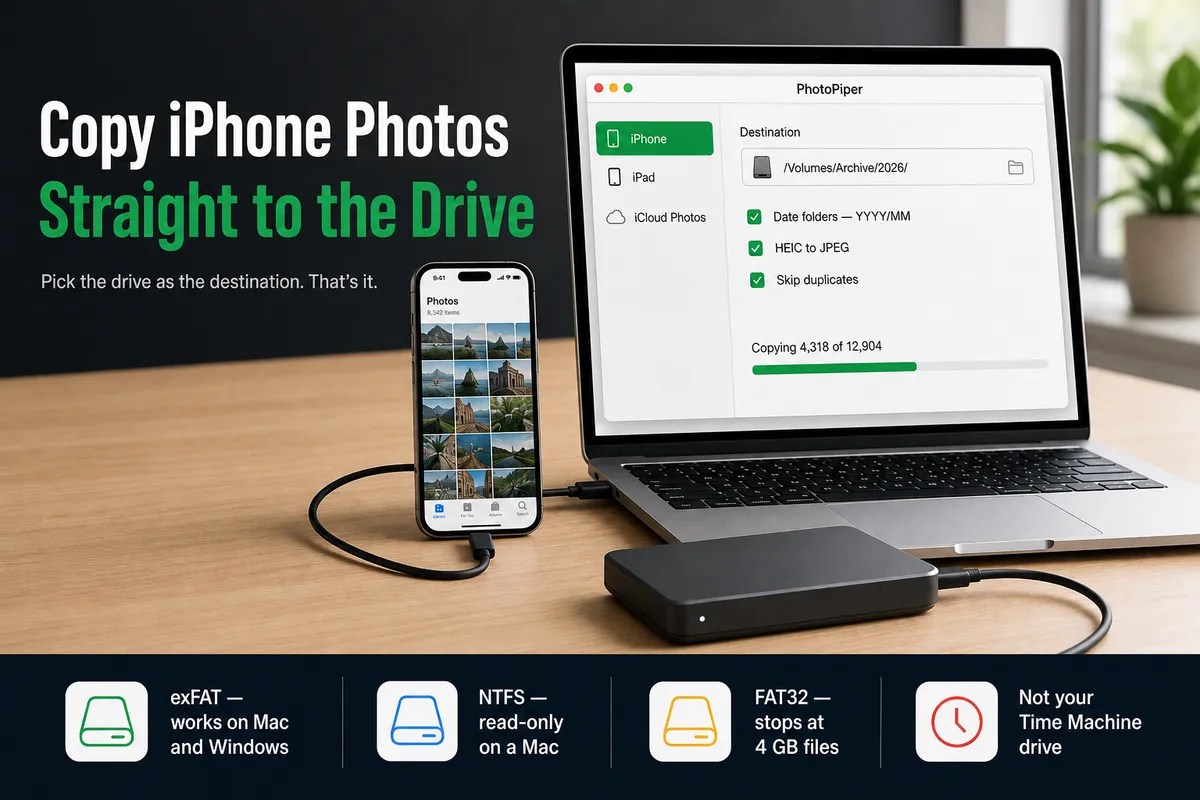
Short answer: don’t do it in two steps. Most guides tell you to import the camera roll into your Mac first and then drag the folder onto the external drive — that needs twice the free space, takes roughly twice as long, and leaves you with two copies you now have to reconcile. Connect the iPhone by USB, plug in the drive, and point the transfer’s destination folder at the drive itself. The one thing to get right before you start is the drive’s format: exFAT if the drive will ever touch a Windows PC, APFS if it stays on Macs. NTFS drives are read-only on macOS and will fail.
Why the two-step route is the wrong default
The advice you’ll find most often is: import with Photos or Image Capture, then copy the result across. It works, and for 200 photos it’s fine. For a camera roll it has three specific costs.
You need the space twice. A 128 GB camera roll wants 128 GB free on the Mac and 128 GB on the drive. On a 256 GB MacBook Air that’s the whole reason you bought the external drive in the first place.
You pay for the copy twice. Once off the phone, once across to the drive. The second copy is fast, but it isn’t free — and with a spinning USB hard drive it is much slower than people expect.
You end up with two libraries. After the drag, the originals are still sitting on your Mac. Delete them and any tool tracking what it already transferred may now think those photos are gone and offer to copy them again. Keep them and you’ve defeated the point.
Writing straight to the drive avoids all three. Both Image Capture and PhotoPiper let you choose any destination folder, including one on a mounted external drive.
Step 0: check the drive’s format first
This is the step people skip, and it’s the one that wastes an evening. Plug the drive in, open Disk Utility, select the drive and look at the format line under its name.
| Format | Works on Mac | Works on Windows | Watch out for |
|---|---|---|---|
| exFAT | Read/write | Read/write | No journaling — unplugging mid-write can corrupt the volume |
| APFS | Read/write | No (without extra software) | Mac-only; fine if the drive never leaves your desk |
| Mac OS Extended (HFS+) | Read/write | No (without extra software) | Older Macs and Time Machine drives |
| NTFS | Read-only | Read/write | macOS cannot write to it — the transfer will fail |
| FAT32 | Read/write | Read/write | 4 GB maximum file size — long 4K videos won’t copy |
Two of these bite regularly. A drive bought for a Windows PC arrives formatted NTFS, and macOS will mount it, show you the files, and refuse every write. A cheap USB stick arrives FAT32, everything copies fine until it hits a 12-minute 4K video and stops.
If you need to reformat: Disk Utility → select the drive → Erase → choose exFAT (scheme: GUID Partition Map). This wipes the drive, so move anything already on it first.
One more: don’t use your Time Machine drive as the photo archive. Time Machine wants its own volume, and mixing an archive into a backup destination is how people end up with neither.
Step 1: connect and unlock
Plug the iPhone into the Mac with a cable — the one that came with the phone, or another data cable. A charge-only cable will charge the phone and show you nothing.
Unlock the phone and tap Trust if you’re asked. Then leave it unlocked for the duration: iOS restricts photo access over USB while the device is locked, and on some versions it throttles the connection instead of dropping it, which looks like a transfer that has mysteriously slowed to nothing. Settings → Display & Brightness → Auto-Lock → Never for the session is worth the thirty seconds.
Expect this to be slower than the drive is capable of, because the phone is the bottleneck, not the drive. Every Lightning iPhone and every non-Pro USB-C iPhone talks USB 2.0 — around 20–40 MB/s in practice. Only the Pro models from the iPhone 15 onward do USB 3 speeds, and only with a cable that supports it. A 60 GB camera roll over USB 2.0 is a “start it and go and do something else” job, not a five-minute one. It’s still far quicker than uploading 60 GB to iCloud and pulling it back down.
Step 2: point the destination at the drive
In PhotoPiper, click the folder button and pick a folder on the external drive — not your Pictures folder. The choice is remembered, so next time you plug the same drive in it’s already set.
Two options worth turning on before you start:
- Date folders — organizes what lands on the drive into a
YYYY/MMstructure by capture date. On an archive drive this matters more than on your Mac, because you’re going to open this drive in two years and want to find August 2024 without scrolling through 40,000 files namedIMG_4782. - HEIC → JPEG — see below.
Step 3: HEIC → JPEG, if the drive will be read by anything that isn’t a Mac
Since iOS 11 the iPhone saves photos as HEIC. Modern Macs open them without a thought, so on your own machine you may never notice. An external drive is different — it’s the copy you’ll plug into a Windows laptop, hand to a relative, or connect to a TV or a photo frame. That’s where HEIC stops being convenient and starts being a file nobody can open.
Converting during the transfer, rather than afterwards, means the archive is already in a format everything reads. If the drive is purely a Mac-to-Mac archive and you care about keeping Apple’s originals byte-for-byte, leave the conversion off.
What actually goes wrong, and what to do about it
The drive sleeps and drops off. Bus-powered spinning drives spin down when idle, and some reconnect as a new volume when they wake, which the copy sees as the destination vanishing. In System Settings → Battery / Energy, disable “Put hard disks to sleep when possible” for the session.
A bus-powered drive on an unpowered hub browns out. A phone and a bus-powered drive on the same cheap hub is more current than it can supply. Plug the drive directly into the Mac, or use a powered hub. This shows up as random disconnects that look like a bad drive.
The transfer is interrupted. Cable knocked, phone locked, Mac slept. PhotoPiper tracks what it has already written, so restarting skips the files that made it and continues with the rest — you don’t start over. Image Capture has no concept of this: an interrupted import means working out by hand what arrived.
You run it again next month. This is the case the built-in tools handle worst. PhotoPiper keeps a local catalog of what it has transferred, so a second run against the same drive shows only the new photos. That’s the difference between a drive that grows by 400 photos a month and one that accumulates four copies of last summer.
Check the copy actually arrived
Before you delete anything from the phone — and you should be slow to do that — confirm what landed.
Compare counts: on the iPhone, Photos → Library shows the total at the bottom. On the drive, select the destination folder in Finder and press ⌘I for the item count. The numbers won’t match exactly if you converted HEIC to JPEG or if Live Photos landed as two files, so check the shape of the number, not the digit. Then open half a dozen photos from different years, straight from the drive.
If you want a real check rather than a count, PhotoPiper verifies each file it writes as part of the transfer — a progress bar reaching the end is not the same thing as the bytes being intact on the other side.
When you don’t need any of this
Image Capture is free and it works. It’s in your Applications folder, it lets you pick a destination folder — including one on the external drive — and for a few hundred photos in one go it’s a perfectly good answer. What it doesn’t do: remember what it already copied, resume after an interruption, convert HEIC, or organize by date. On large libraries it’s also widely reported to stall. If your transfer is small and one-off, use it and skip the rest of this page.
AirDrop for a handful of photos, obviously.
If your library is already fully in iCloud and you just want it on a drive, downloading originals to the Mac first (Photos → Settings → Download Originals to this Mac) and then copying across is the more direct route. Photos stored only in iCloud don’t exist on the phone to be transferred over USB — this is why a USB import sometimes shows far fewer photos than you expect.
On a Windows PC instead of a Mac? Same job, different guide — see PhotoPiper for Windows, which does the identical straight-to-external-drive transfer and also reads Android phones and SD cards.
FAQ
Can I transfer directly from the iPhone to the external drive with no Mac at all? Not the way this guide means. On iOS 13 and later the Files app can copy from a drive plugged into the phone, but getting the camera roll out that way is a manual, error-prone job that loses date organization. With a Mac in the middle you get folder structure, duplicate skipping and a resumable copy.
Does this work with a USB flash drive or an SD card reader? Yes — anything that mounts as a volume in Finder can be the destination. Watch the format (many USB sticks ship as FAT32, with the 4 GB file limit) and expect a cheap stick to be slower than the phone.
Does PhotoPiper copy videos and Live Photos too? Yes — photos and videos from the camera roll, including Live Photos, slow-motion and time-lapse.
Is the metadata preserved?
Capture dates and EXIF data come across with the files, which is what the YYYY/MM date folders are built from.
What does it cost? PhotoPiper for Mac is free to use with a daily transfer limit, and a one-time purchase removes the limit permanently. No subscription. It needs macOS 13 (Ventura) or later and runs natively on Intel and Apple Silicon.
Do I need iCloud or an internet connection? No. The transfer is USB, phone to Mac to drive, and works with the Wi-Fi off.