
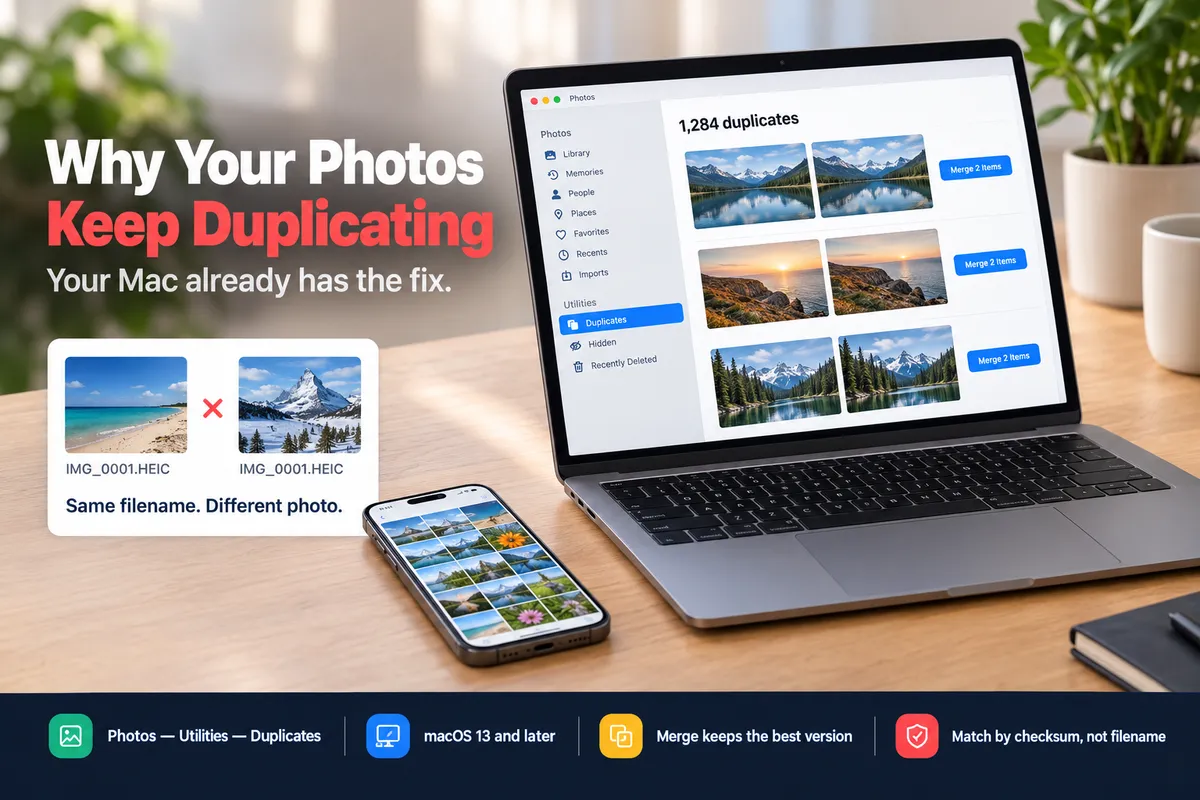
Short answer: if your photos live in the Photos app, macOS already has the fix and most people never find it — Ventura and later add a Duplicates album under Utilities in the sidebar that finds matched pairs and merges them, keeping the best version. If your photos are loose files in folders, Finder won’t help you and you’ll need a checksum, not a filename. But cleaning up is the small half of the problem. The large half is that most import methods have no memory of what they already copied, so every transfer makes a fresh set — and you’ll be back here next month.
The four things that actually cause this
Duplicates feel random. They aren’t. In practice it’s almost always one of these four, and which one you have decides the fix.
1. The import has no memory
This is the big one. Image Capture, dragging the DCIM folder in Finder, and most one-off scripts all treat every session as the first. You imported in June, you import again in September, and the June photos come across a second time into a new folder. Nothing warned you, because nothing was tracking it.
You can tell this is your case if the duplicates cluster by import date — Import 2026-06-14 and Import 2026-09-02 holding overlapping sets.
2. HEIC originals living next to converted JPEGs
If you’ve ever run a HEIC → JPEG conversion, you now have IMG_4782.HEIC and IMG_4782.jpg sitting together. A folder listing shows two files of the same photo; a duplicate finder comparing file contents shows no duplicate, because a JPEG re-encode is a completely different set of bytes.
This one isn’t really a duplicate — it’s two formats of one photo, and you have to decide which you’re keeping. It’s worth identifying early, because tools disagree about whether it counts.
3. Live Photos and RAW+JPEG pairs
A Live Photo is a still plus a short .MOV. Shoot in ProRAW or RAW+JPEG and you get a .DNG and a .JPG of the same frame. Both look like duplication in a flat folder and neither is. Deleting the “extra” file is how people lose the motion in their Live Photos or the editable original of a shot.
4. Two libraries that met
iCloud Photos switched on while you were also importing over USB. A second Mac added to the same account. An old library imported into a new one. Any of these can produce genuine, byte-identical copies of the same photo in one library.
The free fix, if your photos are in Photos
macOS Ventura (13) and later, and iOS 16 and later on the phone:
- Open Photos.
- In the sidebar, look under Utilities for Duplicates. If the album isn’t there, Photos hasn’t finished analysing — this can take a while on a large library, and it only runs when the Mac is idle and plugged in. Leave it overnight and check again.
- Review the pairs. Click Merge on the ones you want combined, or Merge All.
What merging does: keeps the highest-quality version and combines the metadata from both, so if one copy had a caption or a favourite flag and the other had the higher resolution, you end up with one photo holding both. The others go to Recently Deleted, where you have 30 days to change your mind.
Two limits worth knowing. It only sees inside your Photos library — loose files in ~/Pictures/Imports are invisible to it. And it’s conservative: it matches near-identical images, so it won’t catch a photo you re-imported and then edited.
If your photos are loose files in folders
Finder has no duplicate detection at all, and sorting by name won’t find them — see the next section for why.
For an exact-duplicate list without installing anything, this hashes every image and prints the ones whose contents repeat:
find ~/Pictures/Imports -type f \( -iname '*.jpg' -o -iname '*.jpeg' -o -iname '*.heic' \) -exec shasum -a 256 {} + | sort | awk '{ if ($1 == prev) print; prev = $1 }'It only lists them — nothing is deleted, and you should read the list before you act on it. It also finds only byte-identical files, so it won’t pair a HEIC with its converted JPEG (case 2 above).
If you want something with a window and fuzzy matching for near-duplicates, dupeGuru is free and open source and has a picture mode that catches resized and re-compressed copies. Whatever you use, make it show you the matches rather than clean up on its own.
Why comparing filenames doesn’t work
The obvious approach — same name, same photo — fails on iPhone libraries specifically, for two reasons.
The counter resets. IMG_0001.HEIC is not a unique name. It comes back after a restore, after switching phones, and after the counter wraps. Two files called IMG_0001 from the same phone can be years and completely different pictures apart.
Two phones collide. In a household importing from several iPhones, IMG_3204 exists on all of them and means something different on each. Any tool matching by name alone will either merge unrelated photos or refuse to merge real duplicates — and the first failure mode is the one you don’t notice.
Anything trustworthy has to look at the content. A checksum of the file is the honest version of “is this the same photo”.
The actual fix: stop making them
Cleanup is a chore you’ll repeat until the import stops producing duplicates in the first place. That means importing with something that keeps a record of what it has already taken off the device — not a scan of where you happened to file things afterwards.
This is what PhotoPiper is for. It builds a fast fingerprint from file size, capture time and filename for the first pass, then settles anything ambiguous with a full BLAKE3 checksum of the file, and records both. Run it again next month and it offers you the new photos only.
The part that matters for case 2 above: it stores the checksum of the original alongside the file it actually wrote. So a photo that went across in July as a converted JPEG is recognised in September as the same photo, even though what’s on your Mac is no longer byte-identical to what’s on the phone. Converting on import and skipping duplicates across runs are the same problem, and they have to be solved together or you get a fresh JPEG of every old photo each time.
Every file it writes is checksum-verified, so “already transferred” means the bytes actually arrived, not that a progress bar finished.
It’s free up to 100 photos a day and $19.99 once for unlimited; macOS 15.2 or later. If you’re on an older macOS, the Photos Duplicates album above is still your best free option — and if you’re on Windows, PhotoPiper for Windows does the same skip-what’s-already-copied import.
Before you delete anything
Duplicate cleanup is the one photo job where a mistake is permanent, so:
- Work from a backup. Time Machine or a copy of the folder, made before you start.
- Never let a tool auto-delete on its first run. Look at the matches. Every duplicate finder has false positives, and burst sequences and Live Photos are where they happen.
- Check the pairs that differ in size. A “duplicate” that’s much smaller is often a shared or re-downloaded copy at reduced quality — keep the big one.
- In Photos, remember Recently Deleted holds merges for 30 days. That’s your undo, and it expires.
FAQ
Does merging duplicates in Photos delete anything permanently? Not immediately. Merged copies go to Recently Deleted and stay for 30 days, so you can recover them if a merge was wrong.
Why does Photos say I have no duplicates when I can see them? Either the analysis hasn’t run yet — it needs the Mac idle and on power, and takes a long time on big libraries — or your “duplicates” are loose files outside the Photos library, which the album can’t see.
Do duplicates count against iCloud storage? Yes. Every copy is a stored file. On a large library, clearing genuine duplicates is one of the few ways to get meaningful iCloud space back without deleting anything you care about.
Is a HEIC and its JPEG version a duplicate? Not to a checksum-based tool — the files differ completely. It’s one photo in two formats, and it’s your call which to keep. Keep the HEIC if the photo stays on Apple devices; keep the JPEG if it’s going anywhere else.
Will deleting duplicates on my Mac delete them from my iPhone? Only if iCloud Photos is on and syncing that library — then yes, deletions propagate. If your Mac copies are a separate local import, the phone is untouched. Check which of the two you have before you start.